Set staff permissions
Permissions come in two parts: what someone can do, and which clients they can do it to. Both are enforced in the database, not just hidden in the interface.
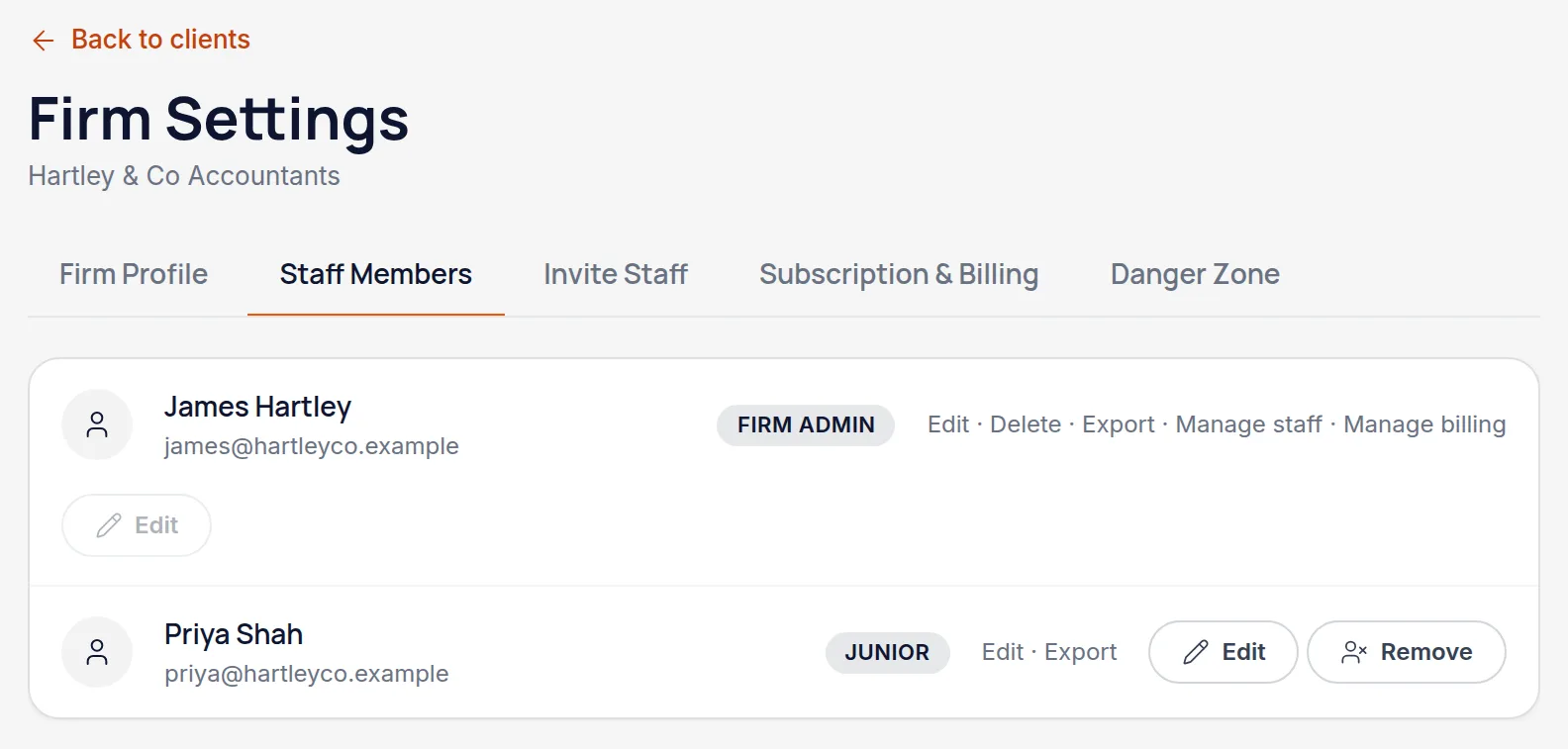
Open firm settings and find the staff member
Each person has a role and a set of permissions you can edit individually.
Set what they can do
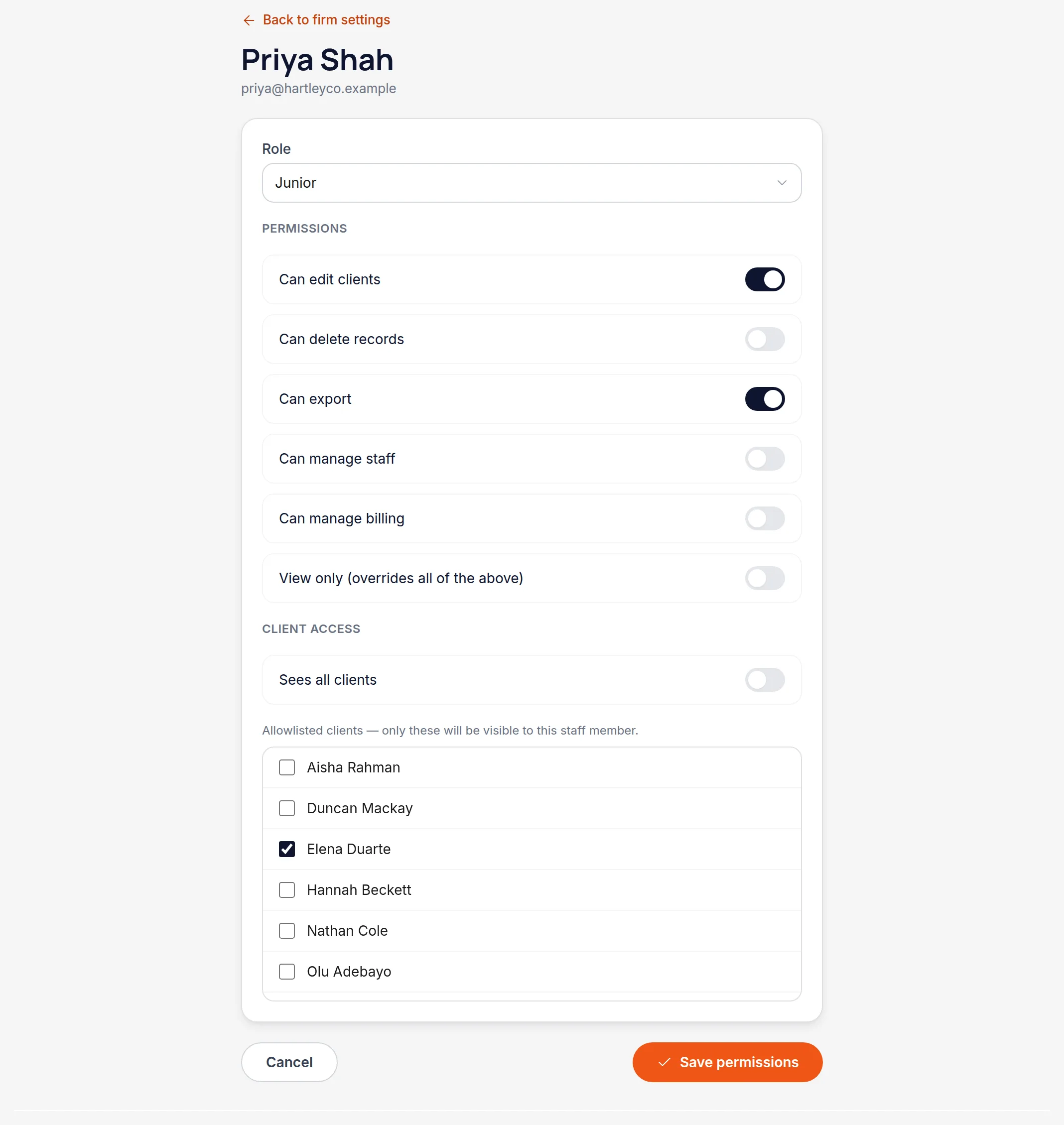
Edit clients, delete records, export, manage staff and manage billing are separate switches. "View only" overrides all of them, for someone who should be able to look and nothing more.
Decide which clients they see
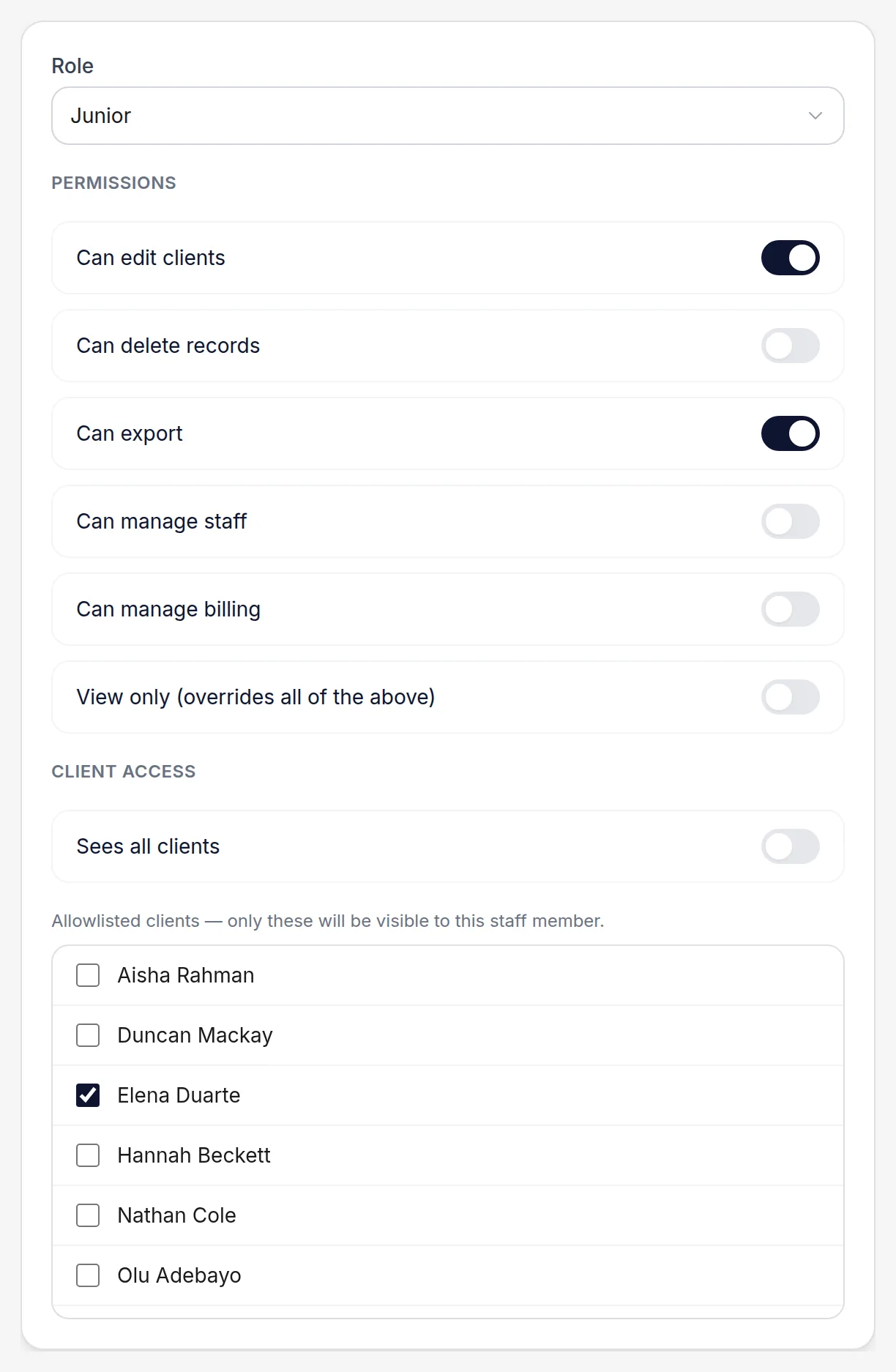
"Sees all clients" is the default. Turn it off and you pick the clients individually — everything else becomes invisible to them, not merely hidden.
Worth knowingWorth being precise about: a restricted staff member cannot reach another client's records by any route, including a direct link someone pastes them. The restriction is applied by the database on every query.
Check it from their side if it matters
For a genuinely sensitive client, the honest test is signing in as the restricted colleague and confirming the client isn't there.
All names, addresses and figures in these screenshots are illustrative sample data.
Related
Create the client, give them a reference, and decide whether they get their own login.
For a landlord who keeps their own records and wants their accountant to see them.
What the dashboard is telling you, and where everything lives.
Didn’t answer your question?
Email support@handledproperty.co.uk and tell us what you were trying to do. Or browse the rest of the knowledge base.